XC Techs Offcial Site We Are Here To Help You In Style
Related Articles



 Seas0nPass supports a tethered jailbreak of the 4.4.1 (iOS 5 – 9A335a) software that was released on 10/17/2011.
The current version of Seas0nPass will default to an untethered jailbreak for the previous 4.3 (iOS 4.3 – 8F455) version. An untethered jailbreak means the steps listed under the “Using Seas0nPass for a tethered boot” section are not required. Details on using Seas0nPass to jailbreak the new 4.4.1 AppleTV software can be found here.
Download Links
Seas0nPass for Mac [10.6 or later]
Seas0nPass for Windows [XP or later]
Video tutorial
Troubleshooting tips
Pre-launch checklist
- Latest version of iTunes.
- Latest version of Seas0nPass (use links above).
- A micro USB cable.
- Disconnect any iPods, iPhones, and iPads from your computer.
Using Seas0nPass to jailbreak the AppleTV
Step 1: Unzip the ‘Seas0nPass.zip’ file and launch Seas0nPass.
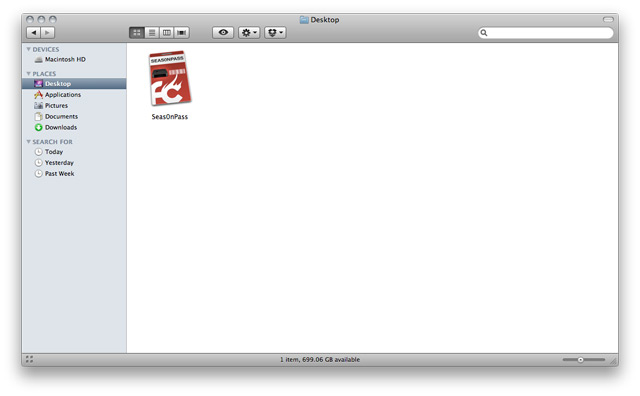
Step 2: Select the ‘Create IPSW’ button to start the jailbreak process.

Step 3: The latest AppleTV software will be downloaded and used to create a custom ‘jailbroken’ software file.
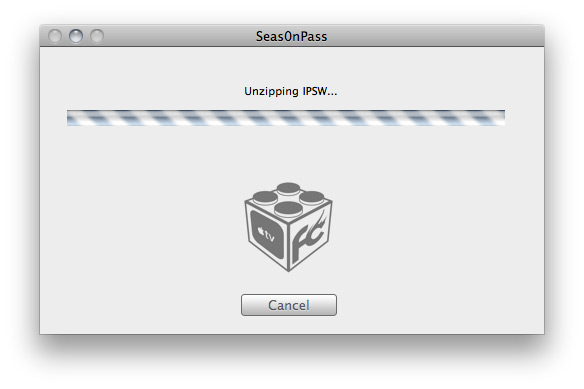
Step 4: When prompted, connect your AppleTV to your Mac/PC using a micro-USB cable (leave power disconnected), and hold both the ‘MENU’ and ‘PLAY/PAUSE’ buttons for 7 seven seconds.

Step 5: iTunes will open automatically and start the restore process.
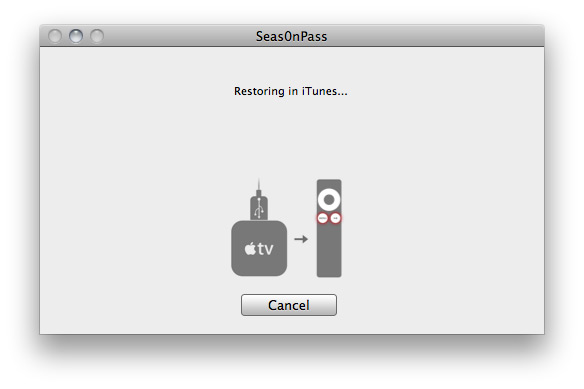
Step 6: iTunes will confirm the restore when complete – your AppleTV is now jailbroken!
Note: The current version will not add a Seas0nPass menu to the AppleTV – this is something that will be resolved soon.